
Introducing AI-Powered Insights for Admins – Meet the Enpass Model Context Protocol (MCP) Server
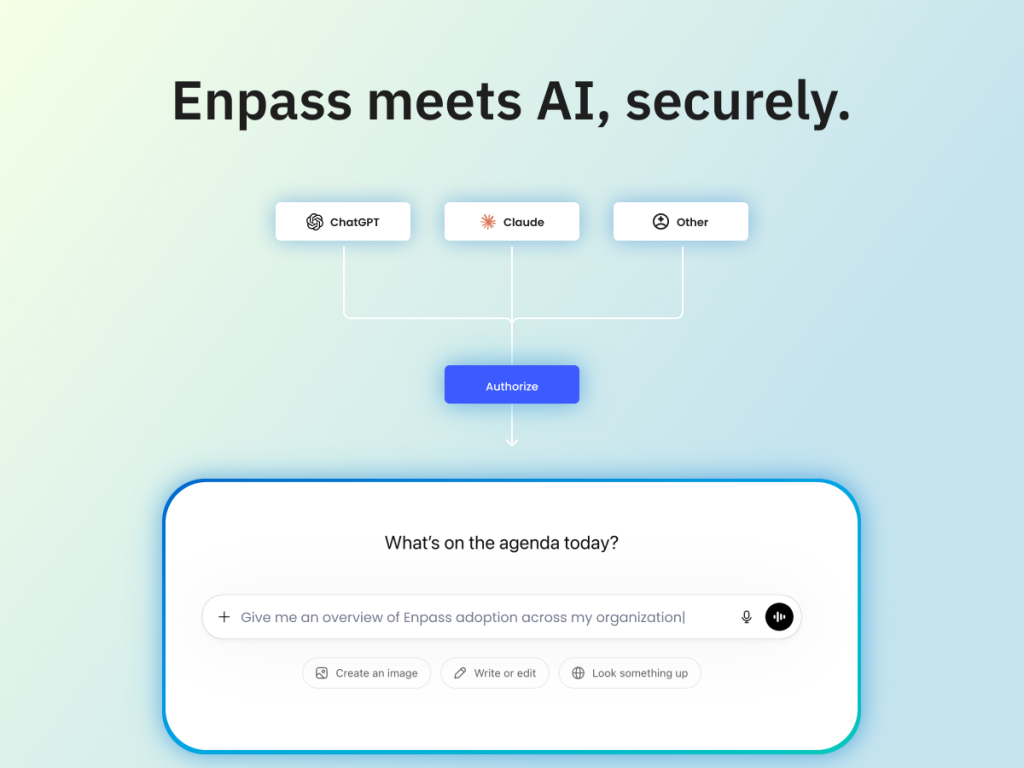
For admins, establishing a fast and accurate overview of your current security health is vital.
Until now, checking your organization’s security health meant logging into the Enpass Admin Console, navigating to the right dashboard, and reading the data yourself. For a quick question like “what does my organization’s password security health look like?” or “what do the authentication stats look like this week?” getting that answer involved too many steps. As we continue to improve the security and user experience of Enpass, today we are introducing a simpler, more convenient way for admins to get the security information they need.
With OAuth authentication, Super admins can now securely connect Enpass to any MCP-compatible AI agent such as Claude or ChatGPT, or any other application that supports the Model Context Protocol (MCP) and ask those questions in plain, conversational language. The answer comes back in the AI agent you already use. Super Admins remain firmly in control while Enpass provides aggregated, read-only insights. For businesses, this provides fast access to key information without compromising security.
Please note:
The Enpass MCP server does not send passwords, passkeys, or any vault data to the AI agent. The connection only exposes the same organizational insights an admin would see in the Admin Console: security audit summaries, adoption metrics, and authentication activity. Your credentials never leave Enpass.
Here’s what you can ask
The connection covers the three areas admins check most often.
- Security Audit:
Previously, you’d log in, open the Security Audit section, and be able to make an assessment of password hygiene across your organization from the data shown.
Now you can simply ask your existing LLM:- “What’s our current password health score?”
- “How many users have reused or weak passwords?”
- “How many credentials in our org are flagged as compromised?”
- Onboarding and Adoption:
Previously, you’d read this off the Admin Console home page.
Now you can simply ask:- “How many invited users haven’t completed setup?”
- “What’s our adoption rate this month compared to last?”
- “Which teams have the lowest enrollment?”
- Authentication Activity:
Previously, this meant manually filtering logs on the Admin Console Events Logs page or configuring your SIEM tool.
Now you can simply ask:- “Were there any failed authentication spikes in the last seven days?”
- “Do we have any unusual login patterns this week?”
- “How many failed attempts to unlock the Enpass application in the last 30 days?”
In each case, questions that used to take minutes of navigation are now answered in seconds, utilizing your existing AI tech stack.
A quick note on how it works
MCP, or Model Context Protocol, is an open standard that lets AI agents securely connect to tools like Enpass. Once a super admin sets up the connection, ChatGPT, Claude or a custom agent can query Enpass for the admin-facing data it’s authorized to see, and nothing more. The setup takes a few minutes and is documented in the Admin Console.
Work seamlessly with AI Agents you already use
This latest product development fundamentally shifts ways of working. Checking your organization’s security health stops being a scheduled task and starts being something you can do the moment the question comes up. “How secure are we right now?” used to require carving out time. Now it fits inside any conversation you’re already having with your AI agent.
For security, IT, and compliance teams that have moved a meaningful share of their work into ChatGPT or Claude already, Enpass can now be used as part of this intuitive, conversational experience.
Ready to get started?
Head on over to the Enpass Admin Console, navigate to Settings → MCP Server → Add Agent and connect to your preferred AI agent today.
Access the Admin Console here: https://console.enpass.io/ or explore the help documentation for step-by-step setup guidance.
For more information, refer to the release notes.